---
title: Widget Date Overwrite
description: Learn how to use the Widget Date Overwrite functionality to apply date ranges in bulk across report widgets, simplify historical reporting, and standardize report time periods in Proqio.
---
[Skip to content](https://help.proqio.com/widget-date-overwrite#main-content)
[](https://help.proqio.com/?hsLang=en)
Open main navigation
Close main navigation
How can we help you?
- There are no suggestions because the search field is empty.
1. [Knowledge base](https://help.proqio.com/?hsLang=en)
2. [Report Creation](https://help.proqio.com/report-creation?hsLang=en)
# Widget Date Overwrite
## This functionality allows users to apply a date/time range in bulk across all widgets within a report. This feature is designed to reduce manual configuration preparing reports for a specific monitoring period.
### Why is this functionality useful?
Managing date ranges widget by widget can be time-consuming, especially in reports containing multiple visualizations and data components.
With **Widget Date Overwrite**, users can:
- Update all supported widgets in a report at once
- Quickly align reports to a specific monitoring period
- Standardize the displayed timeframe across widgets
- Reduce manual configuration effort
- Generate reports for past monitoring periods by applying a custom date range, regardless of the actual date when the report is created or exported
---
### Feature Highlights
- Bulk overwrite of widget date ranges
- Supports predefined time shortcuts and custom date selections
- Applies changes to all compatible widgets in the report
- Displays a confirmation warning before applying permanent changes
---
### How does it work?
#### 1. Opening the Widget Date Overwrite Tool
1. Open a report teplate.
2. Click the **Date Override** button
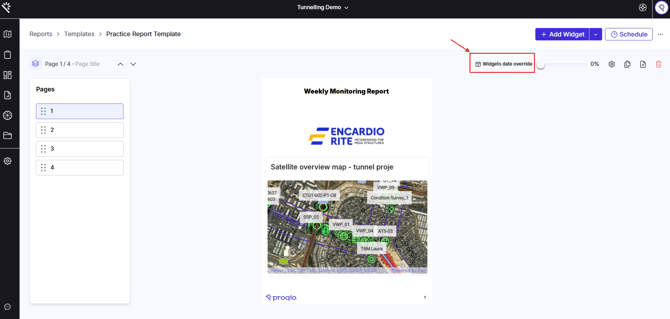
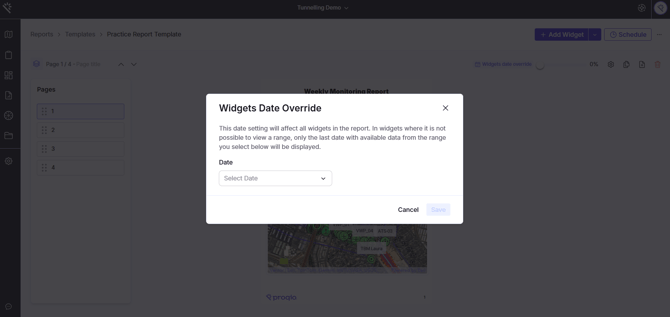
3. A modal window will appear.
``
#### 2. Selecting the Date Range
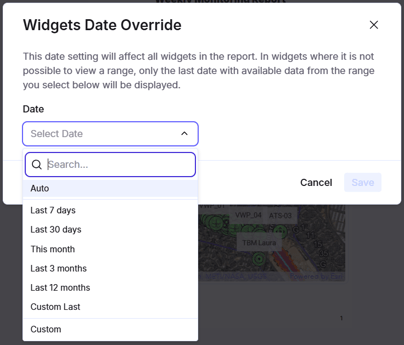
Inside the modal, users can:
- Select a predefined time shortcut
- Configure a custom date or time range
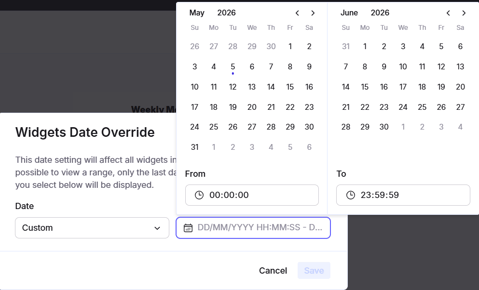
**The selected configuration will be prepared to apply across all supported widgets in the report.**
---
### Unsupported Widgets
The Widget Date Overwrite action cannot be applied to the following widget types:
- Last Reading widget
- Map widget
- Text widget
- Image widget
- AutoDay widget
These widgets maintain their original behaviour and are not modified during the overwrite process.
#### Important Notes
- The overwrite action permanently replaces the existing widget date configuration.
- There is currently no history or undo option available after applying the overwrite.
- [Getting started](https://help.proqio.com/getting-started?hsLang=en#main-content)
- [Project details](https://help.proqio.com/getting-started?hsLang=en#project-details)
- [Teams and members](https://help.proqio.com/getting-started?hsLang=en#teams-and-members)
- [Account](https://help.proqio.com/getting-started?hsLang=en#account)
- [Configure Your Instruments](https://help.proqio.com/getting-started?hsLang=en#configure-your-instruments)
- [Notifications](https://help.proqio.com/getting-started?hsLang=en#notifications)
- [Connectivity methods](https://help.proqio.com/getting-started?hsLang=en#connectivity-methods)
- [Alerts](https://help.proqio.com/getting-started?hsLang=en#alerts)
- [Map](https://help.proqio.com/map?hsLang=en#main-content)
- [Tools](https://help.proqio.com/map?hsLang=en#tools)
- [Analysis](https://help.proqio.com/map?hsLang=en#analysis)
- [Monitoring](https://help.proqio.com/monitoring?hsLang=en#main-content)
- [Instruments](https://help.proqio.com/monitoring?hsLang=en#instruments)
- [Dashboard Creation & Configuration](https://help.proqio.com/dashboard-creation-configuration?hsLang=en)
- [Report Creation](https://help.proqio.com/report-creation?hsLang=en)
- [New Feature Releases](https://help.proqio.com/new-feature-releases?hsLang=en)
- [Project Hierarchy](https://help.proqio.com/project-hierarchy?hsLang=en)
- [Analyse and Interpret your Data](https://help.proqio.com/analyse-and-interpret-your-data?hsLang=en)
- [Learn How to Navigate Proqio](https://help.proqio.com/learn-how-to-navigate-proqio?hsLang=en)
- [Configure Your Map View](https://help.proqio.com/configure-your-map-view?hsLang=en)
- [How to Add a Real Time Picture on Map](https://help.proqio.com/how-to-add-a-real-time-picture-on-map?hsLang=en)
- [Managing Your Data](https://help.proqio.com/managing-your-data?hsLang=en)
- [Uploading Records Manually](https://help.proqio.com/uploading-records-manually?hsLang=en#main-content)
- [Steps for uploading instrument data records manually](https://help.proqio.com/uploading-records-manually?hsLang=en#steps-for-uploading-instrument-data-records-manually)
- [ADA](https://help.proqio.com/ada?hsLang=en)
- [Digital Twin](https://help.proqio.com/digital-twin?hsLang=en)
- [Lines and Textures](https://help.proqio.com/lines-and-textures?hsLang=en)
[](http://www.proqio.com?hsLang=en)
Copyright © 2026, Proqio