
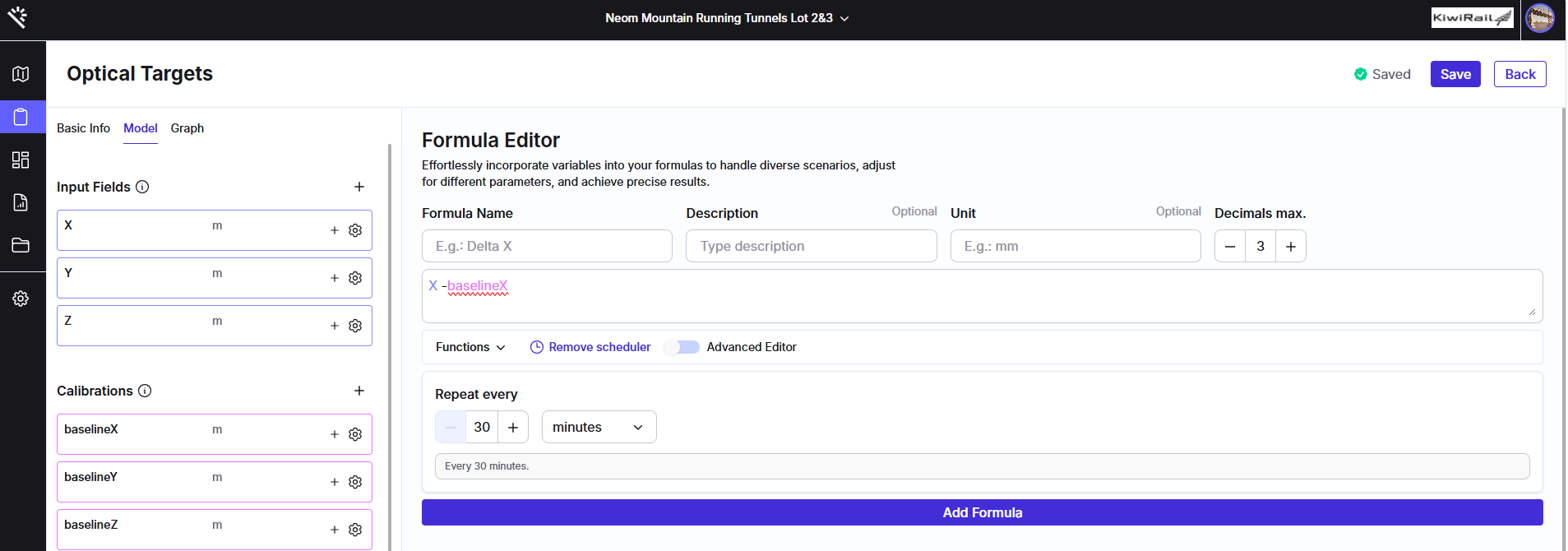
Why is this functionality useful?
In high-frequency monitoring projects, evaluating formulas every time new data is received can create unnecessary CPU load and generate repeated or unwanted notifications.
The Formula Scheduler allows users to define a specific execution frequency for their formulas, ensuring calculations run only when needed.
With this functionality, users can:
- Reduce CPU load caused by frequent formula calculations.
- Minimize unnecessary or repetitive alert notifications.
- Define flexible calculation schedules.
- Apply schedules to historical data when required.
- Easily view the active schedule assigned to a formula.
Use Case: Sensors with Different Data Intervals
The Formula Scheduler is particularly useful for sensors such as IPIs, where individual child sensors may collect and send data to Proqio at different intervals.
For example, if the child sensors of an IPI are sending data at different frequencies, running a formula every time any new data point is received can result in unnecessary calculations and system load.
By scheduling the formula to run at a defined frequency, the calculation can be performed at the required interval rather than being triggered by every individual data ingestion. This provides more consistent analytical results while reducing unnecessary processing and potential alert noise.
Feature Highlights
Flexible Scheduling
Choose how frequently a formula should be evaluated based on the requirements of the project.
Quick Presets
Configure common execution frequencies quickly using predefined options, including:
- Minutes
- Hours
- Weeks
- Months
Custom Cron Expressions
For more advanced scheduling requirements, users can enter a standard Cron expression.
The system also provides a natural language interpretation of the Cron expression, making it easy to verify that the schedule is configured correctly. For example:
Every day at midnight
Historical Backfilling
When a new schedule is configured, users can optionally apply it to historical data using the Backfill option. This allows the formula to be recalculated across previous data and keeps historical metrics consistent with the new configuration.
Schedule Visibility
The active execution schedule is displayed directly on the formula's summary and configuration cards, making it easy to identify how a formula is currently scheduled.
How does it work?
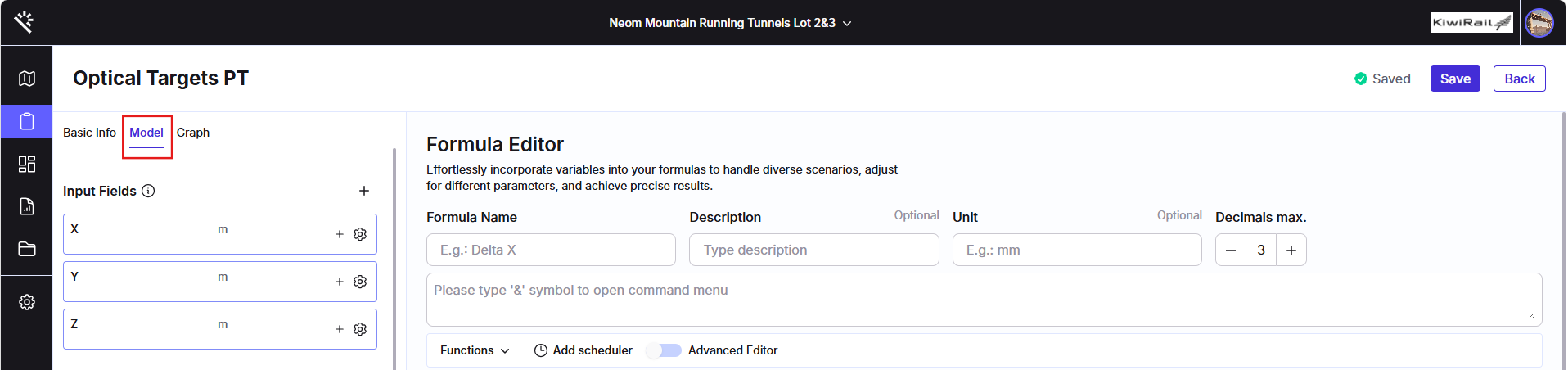
Step 1: Open the Formula Editor
Navigate to the formula you want to configure through Category > Model within the relevant instrument or project settings.
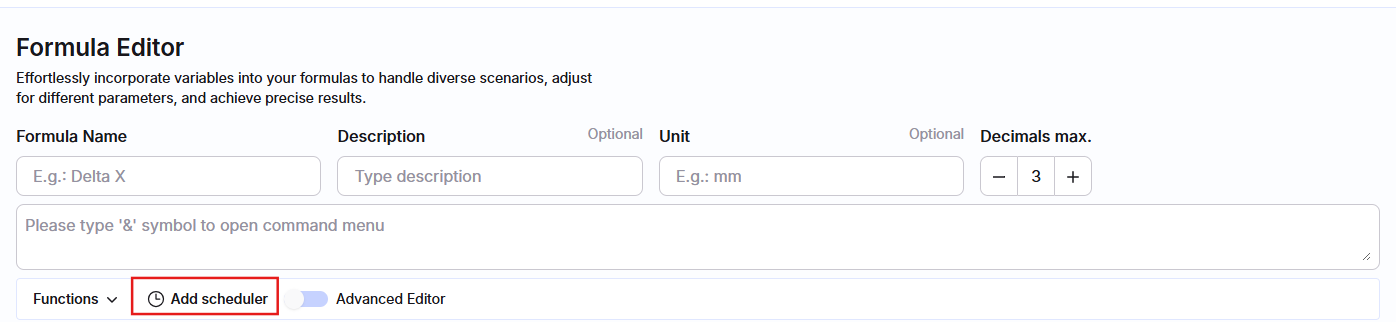
Step 2: Enable the Scheduler
Within the calculation editor, enable the Scheduler option.
Step 3: Choose the Frequency
Select a Quick Preset, such as Hourly or Daily, or enter a custom Cron expression.
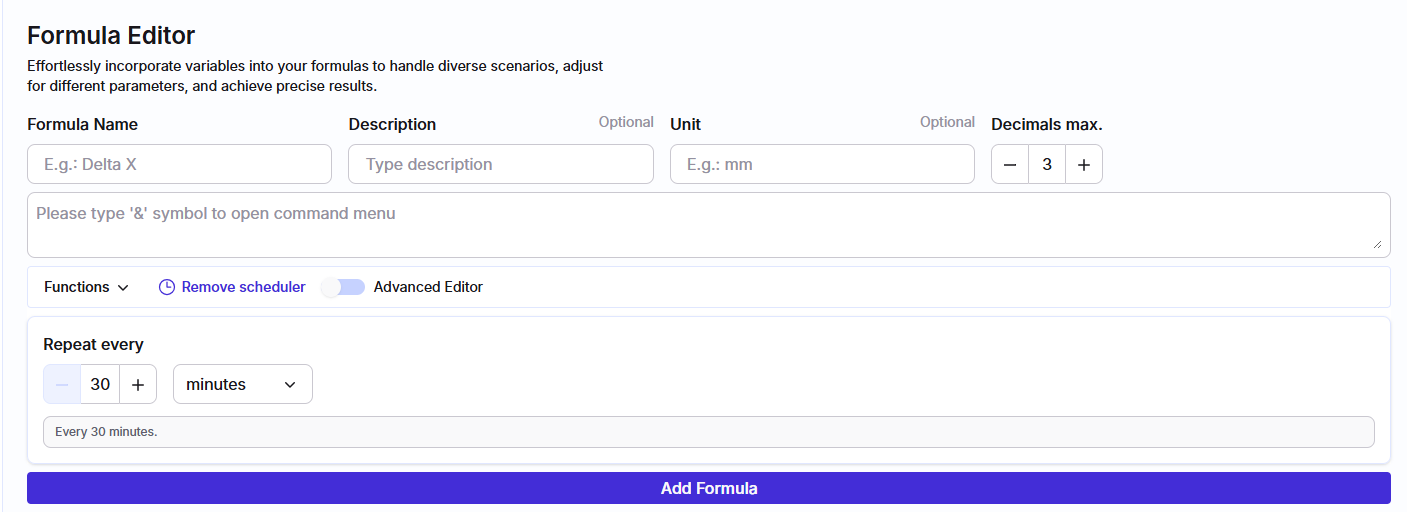
Step 4: Verify the Schedule
Review the natural language confirmation displayed below the Cron input to ensure the schedule matches the intended execution frequency.
Step 5: Save and Backfill if Required
Save the configuration. If the formula should also be applied to historical data, please follow the recalculation procedure for relevant data.
Key Benefits
- Reduced CPU load in high-frequency monitoring projects.
- Fewer unnecessary formula evaluations and notifications.
- Flexible scheduling through presets or custom Cron expressions.
- Easy verification of custom schedules using natural language.
- Option to recalculate historical data.
- Clear visibility of the active formula schedule.