
Why is this functionality useful?
Monitoring data provides valuable information about site conditions, but sometimes users also need direct visual context from the physical site.
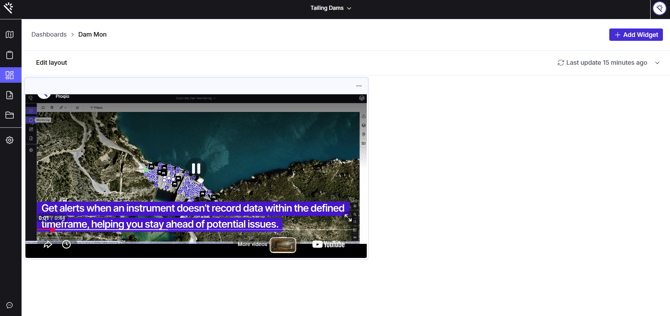
The Embedded iframe Widget allows users to bring external visual information into their Proqio Dashboard, making it easier to monitor digital data and real-world conditions from a single platform.
With this functionality, users can:
- View live CCTV feeds alongside sensor data.
- Embed external video or web content into dashboards.
- Combine physical site visibility with monitoring information.
- Customize the size and behaviour of embedded content.
- Create a more complete operational overview of a site.
Feature Highlights
Embed live CCTV camera feeds or other media directly into a Dashboard to monitor physical site conditions alongside instrument readings and other Proqio widgets.
-
HTML / iframe Support
Add external content by inserting custom HTML or iframe code from a supported external media or web source.
-
Flexible Width Controls
Choose how the embedded content is displayed:
-
- Responsive 100% — automatically adapts to the available widget width. This is the default option.
- Fixed (px) — allows you to specify a fixed width in pixels.
When using a fixed width, the embedded code is automatically updated to reflect the selected width.
-
Autoplay and Muted Controls
Configure media playback directly from the widget setup modal using the Autoplay and Muted options.
When Autoplay is enabled, Muted is automatically enabled and enforced to comply with modern browser audio policies and ensure smooth playback.
How does it work?
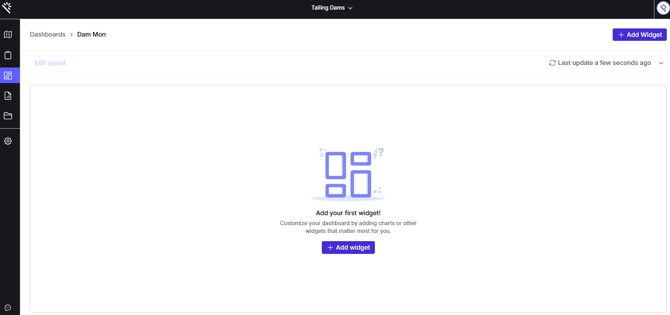
Step 1: Open the Dashboard
Navigate to the Dashboard where you want to add the embedded content and enter Edit mode.
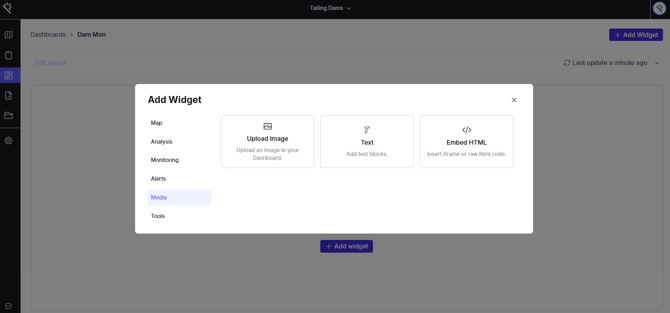
Step 2: Add a Widget
Open the Add Widget dialog and select the Media category from the sidebar.
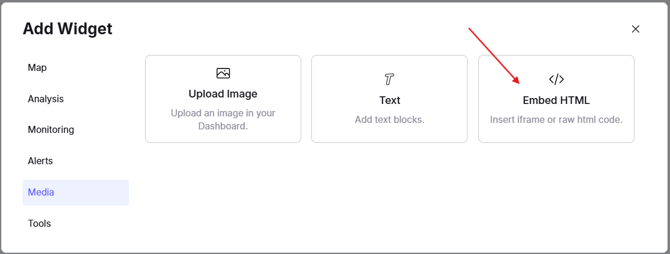
Step 3: Select Embed HTML
Select the Embed HTML card, labelled Insert iframe or raw html code.
Step 4: Configure the Code and Settings
Paste your iframe or HTML code into the text area.
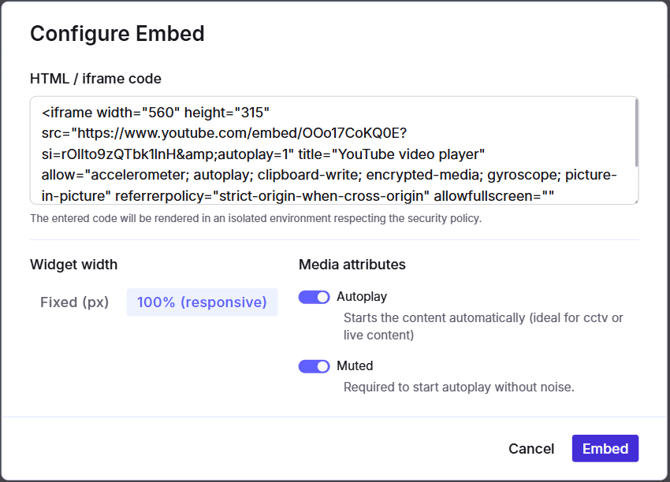
Then configure the available settings:
- Select Responsive 100% or Fixed (px) for the layout.
- Enable or disable Autoplay as required.
- Enable or disable Muted as required.
If Autoplay is enabled, the system will automatically enforce Muted playback.
Step 5: Embed and Save
Click Embed to add the widget to your Dashboard canvas. The embedded content will then be displayed alongside your other Dashboard widgets.
How to Embed a Live CCTV Feed
The Embedded iframe Widget can be used to display CCTV camera feeds directly within a Proqio Dashboard following the steps below:
Step 1: Connect the Cameras to a Cloud Video Platform
Connect the cameras to a compatible cloud video platform that supports web-based or iframe embedding, such as Hik-Connect/HikCentral, Angelcam, Eagle Eye, or Camcloud.
Step 2: Configure Camera Privacy
Configure the camera access as private or restricted. We recommend not to use a publicly accessible camera stream unless this has been explicitly approved by the client.
Step 3: Obtain the Embed URL
Use the cloud video platform to obtain the iframe/embed URL for the camera you want to display.
Step 4: Add the Feed to Proqio
Add the embed URL to the Embedded iframe Widget following the steps described above.
Privacy Note:
If you require your camera feed to be private, it should remain protected by the selected cloud platform's access controls. Before implementation, confirm that the selected platform supports private or restricted embedding and that the embed URL does not make the CCTV feed publicly accessible. The client remains responsible for configuring their camera and cloud-platform privacy settings.