What Are Auxiliary Layers Used For?
This feature allows you to upload and manage your own data as auxiliary layers on the map, providing personalized context and enhanced data visualization. Now you can seamlessly integrate your own information with existing map data for a more comprehensive understanding.
They are useful for:
-
Providing site context for instrument locations
-
Overlaying drawings, layouts, or maps behind instruments
-
Helping stakeholders understand how data relates to the physical site
Key Features:
-
Image Upload (JPG, PNG, TIFF): Upload image files in common formats and display them on the map with adjustable transparency and blending.
-
Geo-Referenced Data (GeoJSON): Upload GeoJSON files to overlay your own geospatial data accurately on the map.
-
Large File Warning: The system will warn you if you attempt to upload a large file that may impact performance, giving you the option to proceed or cancel.
-
Invalid Format Handling: Clear error messages will be displayed if you attempt to upload a file in an unsupported format, with guidance on acceptable formats.
How to Add Auxiliary Layers in Proqio
To add Auxiliary Layers to your project:
1. Navigate to Map page
- Go to Map Page on Proqio
- Navigate to Layers on the right side of panel.
- Go to Auxiliary section
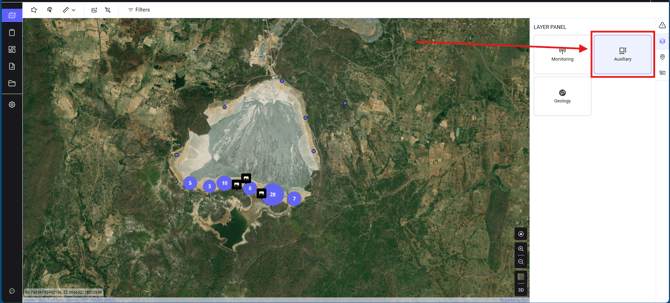
2. Go to Auxiliary Layers section
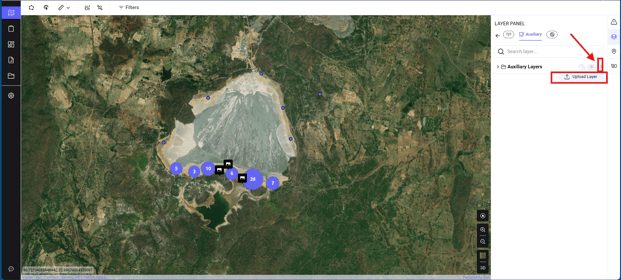
- Navigate to auxiliary layers and select the 3 dot button.
- Click on the Upload Layer button to upload you image/file to Proqio
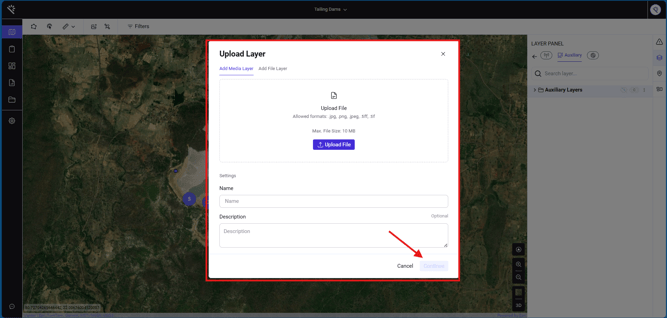
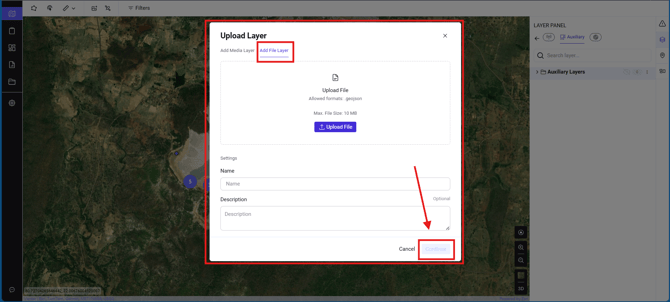
3. Upload your Layer
- Click on Upload File button to upload your image/file to proqio.
- Add name and description to your file and click continue to add it to Map.
Supported File Formats and Layer Management
Uploadable File Formats (UI Upload)
Users can upload the following image formats and file format directly from the Proqio UI:
-
.jpg -
.jpeg -
.png -
.tiff .geojson
Layer Management:
-
Delete Layer: Easily remove uploaded auxiliary layers.
-
Reorder Layers: Control the stacking order of layers to manage visibility and priority.
-
Show Image Info: Access information about uploaded images, including file name, size, format, and upload date.
-
Edit Image: Modify image properties such as position, scale, rotation, title, and description.
These adjustments allow users to manually align drawings or maps with instrument locations for better visual accuracy.
Georeferenced File Formats (Backend Upload Only)
Georeferenced files require backend configuration and cannot be uploaded directly from the UI.
Examples include:
-
DWG (CAD files)
-
KMZ / KML (Google Earth files)
These formats contain coordinate information and must be processed by the Proqio backend to ensure accurate placement.
How to Add Georeferenced Files
If you need to add georeferenced auxiliary layers:
-
Please reach out to Proqio Support (support@proqio.com)
-
Share the file along with the project name and any additional requirements for the auxiliary layer upload
-
The support team will assist with backend setup and alignment
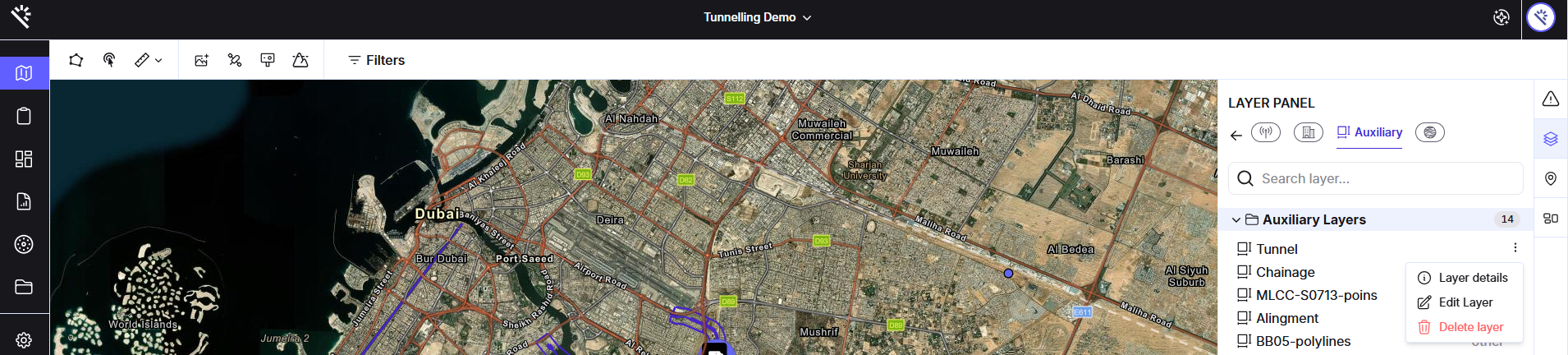
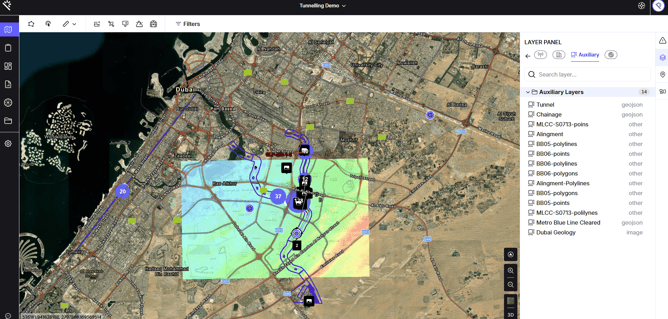
The auxiliary layers can be deleted or edited by any user with Superadmin status. These functions can be accessed by clicking on the 3 dots to the right of the auxiliary layer file, as can be seen in the below image.